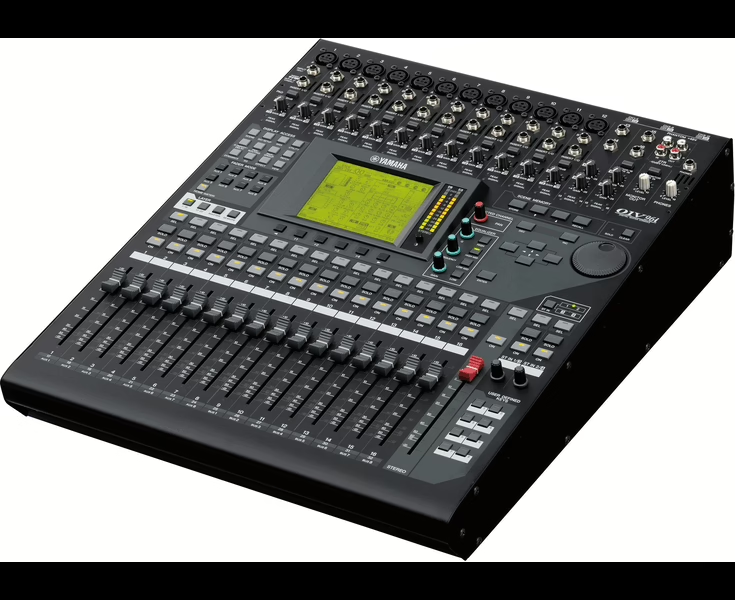
Yamaha M7CL Owner's Manual (V3)
Console: Yamaha M7CL
Contents
- Cover1
- PRECAUTIONS4
- Contents6
- 1. Introduction9
- Thank you9
- An overview of the M7CL9
- About the models11
- The M7CL's channel structure14
- About the MIX bus types (VARI / FIXED)15
- About word clock15
- Conventions in this manual15
- About the firmware version16
- 2. Panels and controls17
- Top panel17
- Rear panel24
- Under the front pad27
- 3. Basic operation of the M7CL29
- Basic operations in the top panel / touch screen29
- Pressing the touch screen29
- Multiple selection (specifying a range)29
- Special operations for keys29
- Encoder operations29
- Multifunction encoder operations30
- The on-screen user interface30
- Tabs30
- Buttons30
- Faders / Knobs31
- List windows31
- Keyboard window31
- Popup windows32
- Dialog boxes32
- Viewing the touch screen32
- Function access area32
- Main area33
- Entering names34
- Using the tool buttons35
- About the tool buttons35
- Using libraries35
- Initializing settings39
- Copying/pasting settings40
- Comparing two settings40
- 4. Connections and setup43
- Connecting SB168-ES units to the M7CL-48ES using the STAGE BOX SETUP function43
- Audio input/output connections46
- Setup items required when you start up the M7CL for the first time50
- Restoring the current scene to the default state50
- Word clock connections and settings50
- Making HA (Head Amp) gain settings51
- Sending an input channel signal to the STEREO bus54
- 5. Input channel operations57
- Signal flow for input channels57
- Specifying the channel name and icon59
- Making HA (Head Amp) settings61
- Sending the signal from an input channel to the STEREO/MONO buses63
- Sending the signal from an input channel to a MIX bus67
- Using the SELECTED CHANNEL section67
- Using the Centralogic section69
- Using the faders (SENDS ON FADER mode)70
- Sending the signal from an input channel to the MATRIX buses72
- Using the SELECTED CHANNEL section72
- Using the Centralogic section74
- Using the faders (SENDS ON FADER mode)75
- Channel library operations77
- 6. Output channel operations79
- Signal flow for output channels79
- Specifying the channel name and icon81
- Sending signals from MIX channels to the STEREO/MONO bus82
- Sending signals from MIX channels and STEREO/MONO channels to MATRIX buses85
- Using the SELECTED CHANNEL section85
- Using the Centralogic section86
- Channel library operations88
- 7. Operations in the SELECTED CHANNEL section89
- About the SELECTED CHANNEL section89
- About the SELECTED CHANNEL VIEW screen90
- Operations in the SELECTED CHANNEL section91
- 8. Operations in the Centralogic section97
- About the Centralogic section97
- About the OVERVIEW screen98
- Operations in the Centralogic section100
- Fixing the channels or DCA groups of the Centralogic section104
- 9. Input/output patching105
- Changing the output patch settings105
- Changing the input patch settings108
- Inserting an external device into a channel110
- Directly outputting an INPUT channel112
- 10. EQ and Dynamics115
- About EQ and dynamics115
- Using EQ115
- Using dynamics118
- Using the EQ or Dynamics libraries121
- EQ library121
- Dynamics library121
- 11. Grouping and linking123
- About DCA Groups and Mute Groups123
- Using DCA groups123
- Assigning channels to a DCA group123
- Controlling DCA groups125
- Using mute groups126
- Assigning channels to mute groups126
- Controlling mute groups127
- Using the Mute Safe function129
- The Channel Link function130
- Linking the desired input channels130
- Copying, moving, or initializing a channel132
- Copying the parameters of a channel132
- Moving the parameters of a channel133
- Initializing the parameters of a channel134
- 12. Scene memory135
- About scene memories135
- Using scene memories135
- Storing a scene135
- Recalling a scene138
- Using user-defined keys to recall139
- Editing scene memories140
- Sorting and renaming scene memories140
- Scene memory editing142
- Copying/pasting a scene142
- Clearing a scene143
- Cutting a scene144
- Inserting a scene144