Mode d'emploi VS-1680 (V-Xpanded)
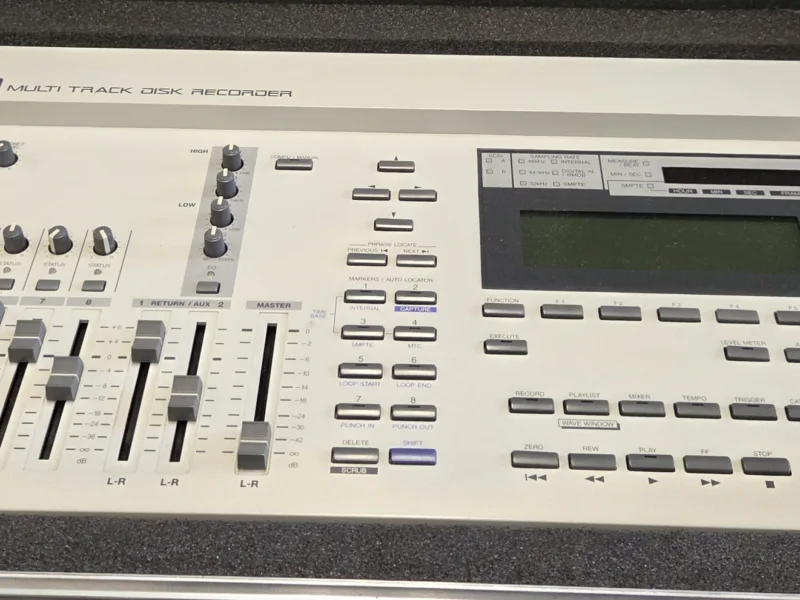
Console : Roland VS-1680
Sommaire
- Owner’s Manual1
- Table of Contents2
- Table of Contents 32
- Expanding the functionality of the VS-1680 62
- Mix 16 tracks down to 2 tracks (Mastering Room) 82
- New effects algorithms 142
- Editing an automix 192
- Using the VS-1680 with a CD-R/CD- RW drive 252
- Enhancements related to operation 302
- Enhancements to the display and specifications 392
- Index 422
- Precautions3
- Added functionality (main features)4
- Mixdown using the VS-1680 alone4
- Additional effect algorithms4
- Automix editing functionality4
- Enhanced support for CD-R/CD-RW drives4
- Enhanced operations4
- Enhanced screen display4
- Expanding the functionality of the VS-16805
- If you purchased the VS-1680 V-XPANDED5
- If you purchased the V-XPANDED system program Zip disk5
- 1. Make sure that the power is turned off on all devices.5
- 2. Disconnect all cables that were connected to the VS-1680.5
- 3. Connect the SCSI Zip drive to the VS-1680. On the back of the Zip drive, make sure the termina...5
- 4. Turn on the power of the SCSI zip drive.5
- 5. Insert the VS-1680 V-XPANDED system program Zip disk into the SCSI Zip drive.5
- 6. Connect the power cable to the VS-1680.5
- 7. Turn on the rear panel power switch of the VS-1680.5
- 8. Wait for the display to prompt “Update System Program?” and then press [YES].5
- 9. A message will ask whether you wish to keep the user settings that are stored in your VS-1680....5
- 10. If you pressed [NO] in step 9, an additional message will ask you to confirm. If you wish to ...6
- 11. The expansion procedure will begin. Please wait for approximately 30 seconds.6
- 12. Once the following message appears, you may turn off the power. Verify that this message has ...6
- 13. Turn on the power once again. Verify on the display that the system software is now 2.00 or h...6
- Mix 16 tracks down to 2 tracks (Mastering Room)7
- Added mastering tracks7
- Mixing down to the mastering tracks7
- 1. Press [MASTER].7
- 2. Press [PAGE] so that [F6] indicates “M.Tr,” and then press [F6 (M.Tr)].7
- 3. Press [ENTER (YES)].7
- 4. Press [], [], [], or [] to move the cursor. Use the TIME/VALUE dial to specify the value for e...7
- 5. Hold down [STOP], and press the [STATUS] button for all tracks (1–15/16) that you wish to mixd...8
- 6. Press [FADER] so that the TR (track) indicator lights.8
- 7. Press [PLAY]. The song will play back.8
- 8. Raise and lower the master fader, and verify that the volume of each track changes.8
- 9. Use the channel faders (1–15/16) to adjust the volume balance of each track. At this time the ...8
- 10. When you have finished adjusting the volume, press [STOP].8
- 11. Move to the location at which you wish to begin the mixdown (such as 00h00m00s00f).8
- 12. Use the cursor buttons and the Value dial to change the "Status" of the tracks for mastering ...9
- 13. Press [REC]. The REC indicator will light in red.9
- 14. Press [PLAY]. The PLAY indicator will light in green, and recording will begin.9
- 15. When you finish recording, press [STOP].9
- Mixdown shortcut 19
- 1. Press [MASTER].9
- 2. Press [PAGE] so that [F6] indicates “M.Tr,” and then press [F6 (M.Tr)].9
- 3. Select the status of the mastering tracks. Make sure that the cursor is located at “Stat,” and...9
- 4. Select the V-tracks. Use [] or [] to move the cursor to “L:” or “R:,” and rotate the TIME/VALU...9
- Mixdown shortcut 29
- 1. Press [PLAY (DISPLAY)].9
- 2. Press [PAGE] so that [F6] indicates “MÆ***” (*** is either Rec, Ply, or Off).9
- 3. Press [F6] to cycle between “MÆRec” Æ “MÆPlay” Æ “MÆOff.” The current status of the mastering ...9
- Playing back the mastering tracks9
- 1. Press [PLAY (DISPLAY)].9
- 2. Press [PAGE] so that [F6] indicates “MÆ***” (*** is either Rec, Ply, or Off).9
- 3. Press [F6] to cycle between “MÆRec” Æ ”MÆPlay” Æ ”MÆOff.” The current status of the mastering ...10
- 4. Move to the location at which you started the mixdown.10
- 5. Press [] so that you can view the playlist of the mastering tracks.10
- 6. Press [PLAY]. The mastering tracks will play back. Use the master fader to adjust the volume t...10
- 7. When playback ends, press [STOP].10
- Mixing down while inserting effects10
- 1. Press [MASTER].10
- 2. Press [PAGE] so that [F6] indicates “M.Tr,” and then press [F6 (M.Tr)].10
- 3. Press [ENTER (YES)].11
- 4. Use [], [], [], and [] to move the cursor to “Status.”11
- 5. Select the “Status” of the mastering tracks. Rotate the TIME/VALUE dial.11
- 6. Use [], [], [], and [] to move the cursor to “EFXIns.”11
- 7. Press [ENTER (YES)].11
- 8. Use [], [], [], and [] to move the cursor. Use the TIME/VALUE dial to make settings.11
- 9. Press [F1 (EFX1)].11
- 10. Press [F2 (Sel)].11
- 11. Use the TIME/VALUE dial to move the cursor to the effect that you wish to use. For this examp...11
- 12. After selecting an effect, press [F4 (Exec)].11
- 13. Press [F6 (EXIT)].11
- 14. Hold down [STOP], and press [STATUS] for all tracks (1–15/16) that you wish to mixdown. The S...12
- 15. Press [FADER] so that the TR (track) indicator lights.12
- 16. Press [PLAY]. The song will play back.12
- 17. Raise and lower the master fader, and verify that the volume of each track changes.12
- 18. Use the channel faders (1–15/16) to adjust the volume balance of the tracks. At this time, th...12
- 19. When you are finished adjusting the volume, press [STOP].12
- 20. Move to the time location at which you wish to begin the mixdown (e.g., 00h00m00s00f).12
- 21. Change the “Status” of the mastering tracks to “Rec.”12
- 22. Press [REC]. The REC indicator will light in red.12
- 23. Press [PLAY]. The PLAY indicator will light in green, and recording will begin.12
- 24. When you finish recording, press [STOP].12
- New effects algorithms13
- Making the volume consistent for each frequency band (Mastering Tool Kit)13
- EQ (Equalizer)13
- Sw (Switch) Off, On.13
- InputG (Input gain) -24–+12dB13
- Low Type Shlv, Peak13
- High Type Shlv, Peak13
- Low Gain -12–+12dB13
- LoMid Gain (Low middle gain) -12–+12dB13
- HiMid Gain (High middle gain) -12–+12dB13
- High Gain (High gain) -12–+12dB13
- Low Freq (Low frequency) 20–2,000Hz13
- LoMid Freq (Low middle frequency) 20–8,000Hz13
- HiMid Freq (High middle frequency) 20–8,000Hz13
- High Freq (High frequency) 1.4–20kHz13
- Low Q (Low Q) 0.3–1613
- LoMid Q (Low middle Q) 0.3–1613
- HiMid Q (High middle Q) 0.3–1613
- High Q (High Q) 0.3–1613
- Lvl (Level) -24–+12dB13
- BCut (Bass-cut filter)14
- Sw (Switch) Off, On14
- Freq (Frequency) Thru, 20–2,000Hz14
- Enh (Enhancer)14
- Sw (Switch) Off, On14