Guide Avid S4/S6 (2021.6)
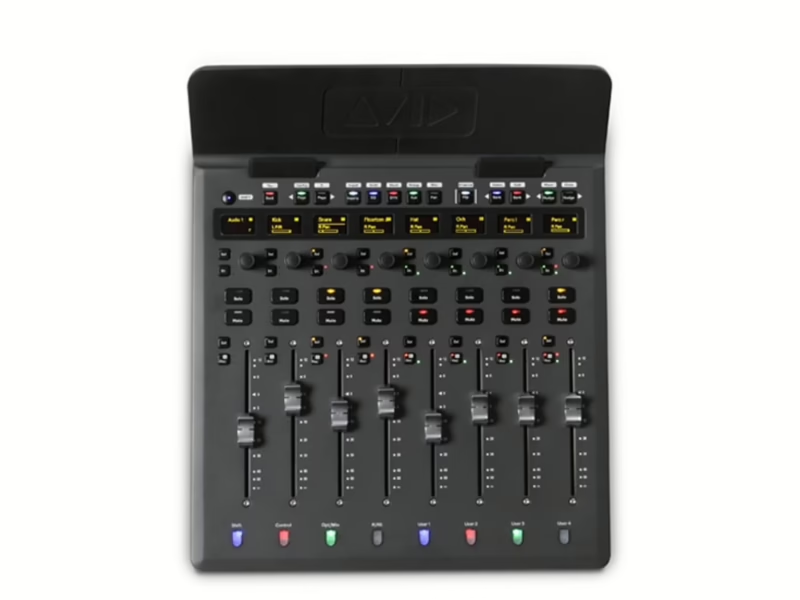
Console : Avid S4
Sommaire
- Contents3
- Part I: Introduction7
- Chapter 1: Introduction to Avid | S6 and S48
- Modules9
- Master Module9
- Automation Module9
- Display Module9
- Knob Module9
- Process Module9
- Fader Module9
- Master Joystick Module9
- Master Post Module9
- Channel Strip Module9
- System Configurations10
- S6 Surface Configurations10
- S4 Surface Configurations11
- Frames and Hardware Options11
- System Requirements and Compatibility12
- Activation and Registration12
- About This Guide12
- Conventions Used in This Guide12
- How to Use this PDF Guide12
- Resources13
- Account Activation, Product Registration, and License Activation13
- Support and Downloads13
- Training and Education13
- Videos on YouTube13
- Products and Developers13
- News and Events13
- Part II: Getting Started14
- Chapter 2: First Time Setup15
- Starting Up the System for the First Time15
- Software Activation16
- Logging in as Administrator and Updating Master Module Software16
- Activating Your Software License17
- Installing S4/S6 Supporting Software18
- Connecting S4/S6 to a Network19
- Recommended Setup19
- Advanced Setup20
- Managing Network Connections21
- Starting Up and Shutting Down the System24
- Starting Up the System24
- Shutting Down24
- LED Indication of Module Power and Connection Status on System Startup24
- Configuring S4/S6 the First Time25
- Configuring the Surface25
- Connecting S4/S6 to Workstations30
- Show Workstation Alerts32
- Enabling EUCON Connectivity33
- Control App Compatibility34
- Part III: Touchscreen35
- Chapter 3: Master Module Screens36
- Chapter 4: Home Screen37
- The Attention Track Editor38
- Function Colors38
- Function Scroller39
- Function Editor39
- Assigning New Parameters to the Attention Track Knobs40
- Using Page Switches to Navigate Attention Track Knobs40
- Using the Attention Track Knobs40
- Functions with Additional Editing Features42
- Custom Knobs43
- Meter Scroller and Track Scroller43
- Universe View Indication of Currently Attentioned Track43
- Meter Scroller44
- Track Scroller44
- Attentioning a Track From the Meter and Track Scrollers44
- Rename Tracks45
- Home Screen Options45
- Attention Tracks from Meter Scroller45
- Display Selection/Attentioned Track Border on Meter Scroller45
- Track Scroller Follows Attentioned Track45
- Link Meter Scroller to Track Scroller45
- Knob View45
- Enable Expand Knob Zone46
- Enable Expand Fader Zone46
- Open Windows on Workstation When Knobs Assigned46
- Expand Knob and Expand Fader Function Settings47
- Function and Knob Page on Attention Change Settings47
- Auto Show Function Graph on Selection48
- Auto Show Function Graph on Knob Touch48
- Chapter 5: Tracks Screen49
- Displaying Tracks50
- Displaying Hidden Tracks50
- Track Matrix Controls50
- Attention50
- Select, Assign, Record, Solo, Input, and Mute50
- Clear51
- Current Title and Auto-Saved Session Display52
- Track Scroller52
- Track Selector Options53
- Position54
- Display Breaks On Track Color54
- Auto-Bank to Attentioned Track54
- Show Home Screen on Track Attention54
- Auto Select Joystick Strips when Storing Layouts54
- Store Hidden Virtual Strips in Layouts54
- Double Tap Assign to Copy Tracks from Banking Mode into Current Layout54
- Number of Strips in Layout54
- Post Layouts55
- Meter Layouts56
- Chapter 6: Monitoring Screen57
- Assigning Monitor Sources58
- Configuring Sources for Pro Tools | MTRX, MTRX Studio, or AX3258
- Monitoring Screen Local Options60
- Auto Listenback60
- Enable Surface Listenback Latching60
- Auto Talkback60
- Enable Surface Talkback Latching60
- Enable GPI Talkback Latching61
- Enable Speaker Label Editing61
- Sum and Intercancel Modes for Source and Speaker Switches62
- Enable EUCON Monitor62
- Chapter 7: Settings Screen63
- Workstations63
- Switching KVM Source Independent of Workstation Focus63
- Surface64
- Update and Update All (Firmware)64
- Soft Keys64
- User and System Preferences64